
Or start from
TOP COLLECTIONS
The words exactly as they appear on the page.

TOP COLLECTIONS
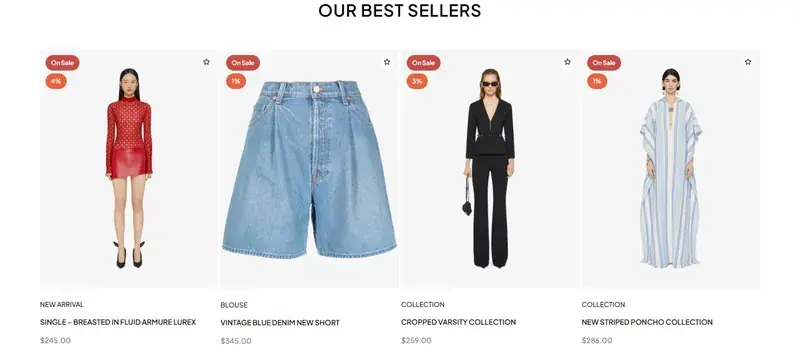



- 1
Add ShopIgnitor to your AI app
In Claude, open Plugins → Add → Browse connectors, search for ShopIgnitor and click Connect — or open the step-by-step guide. Apps that support custom MCP connectors, such as ChatGPT, use the address
https://shopignitor.com/mcp. - 2
Sign in and choose what it may do
Log in with your ShopIgnitor account. You choose what the app may do: see your account and stores, edit your stores, build new stores, take stores live or offline, and — only if you tick it — see and update orders and customers.
- 3
Ask in plain words
For example: "List my stores", "Change the main heading on my candle store to Winter Sale", "Set the price of the lavender candle to 2500", "Show my last five orders", "Build me a store for handmade leather bags in Lahore".
- 4
Check, and undo if needed
Your app tells you what it changed. Every change to a store takes a restore point first, so "undo that" puts it back — prices and stock included.
- 5
Disconnect any time
Go to Dashboard → Account → Connected AI apps and press Disconnect. The app loses access at once.
